
Dockerized Deployment of LibreChat
The LibreChat project is built around Docker making deployment a breeze in a variety of environments. In the last section, we created a DigitalOcean Droplet running Ubuntu 22.04. In this section, we will install Docker on the Droplet and deploy the LibreChat project using Docker.
The LibreChat Docker deployment guide walks through the process indicating explicitly that the installation is the “best” and may not be the quickest. The reason for this claim is that it’s meant to make long-term maintenance easier in terms of updates and security patches etc.
Docker on Ubuntu DigitalOcean Droplet
Section titled “Docker on Ubuntu DigitalOcean Droplet”Step 1: Install Docker + Dependencies
Section titled “Step 1: Install Docker + Dependencies”-
SSH into your DigitalOcean Droplet using the following command:
Terminal window ssh <yourusername>@<your-droplet-ip> -
Update the package list and install the required dependencies:
Terminal window sudo apt updateTerminal window sudo apt install apt-transport-https ca-certificates curl software-properties-common gnupg lsb-releaseThis will install a number of packages:
apt-transport-https- allows the use of repositories accessed via the HTTP Secure protocol (HTTPS)ca-certificates- allows the system to check the authenticity of SSL certificatescurl- a command-line tool for transferring data with URLssoftware-properties-common- provides an abstraction of the used apt repositories and allows for easy management of software sourcesgnupg- GNU Privacy Guard, a complete and free implementation of the OpenPGP standard as defined by RFC4880 (also known as PGP)lsb-release- provides information about the Linux distribution you are using to help with package management
Step 2: Add Docker Repository
Section titled “Step 2: Add Docker Repository”-
Add the Docker GPG key to your system:
Terminal window curl -fsSL https://download.docker.com/linux/ubuntu/gpg | sudo gpg --dearmor -o /usr/share/keyrings/docker-archive-keyring.gpg -
Add the repository to the source list
Terminal window echo "deb [arch=$(dpkg --print-architecture) signed-by=/usr/share/keyrings/docker-archive-keyring.gpg] https://download.docker.com/linux/ubuntu $(lsb_release -cs) stable" | sudo tee /etc/apt/sources.list.d/docker.list > /dev/null -
Refresh your packges
Terminal window sudo apt update
Step 3: Install Docker
Section titled “Step 3: Install Docker”-
Install Docker
Terminal window sudo apt install docker-ce docker-ce-cli containerd.ioThe LibreChat guide suggests installing the
docker-cepackage, which is the community edition of Docker. This is the recommended package for our purpose. They note that many Linux distributions have docker-io packages in their repositories, but the Docker repository is the best place to get the latest version. -
Ensure your user has permissions to run Docker commands:
Terminal window sudo usermod -aG docker $USER -
Reboot the server
Terminal window sudo reboot -
Your SSH session will be disconnected. Wait a few moments and then SSH back into the server.
Terminal window ssh <yourusername>@<your-droplet-ip> -
Change users to your non-root user:
Terminal window su - <yourusername> -
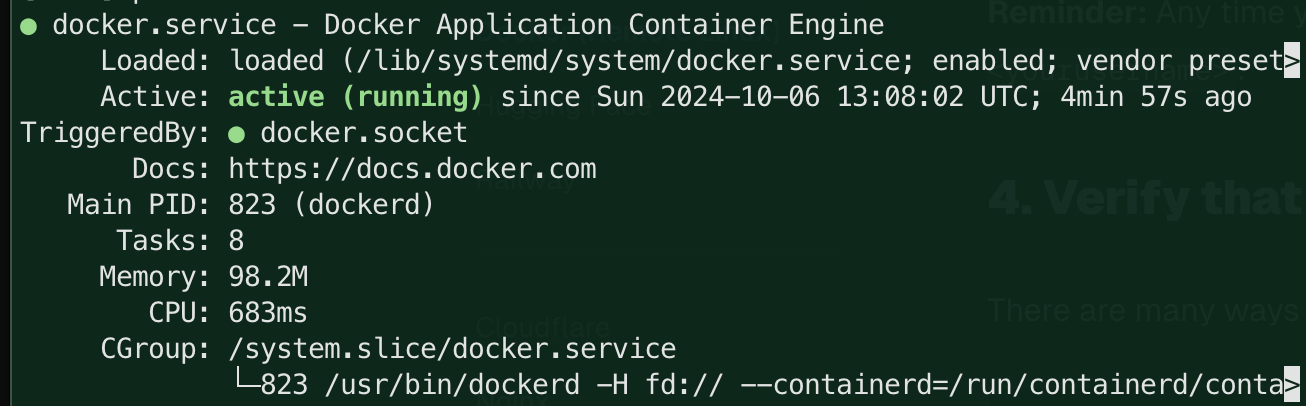
Verify that Docker is installed and running:
Terminal window sudo systemctl status dockerYou should see output indicating that Docker is active and running:
Step 4: Install Docker Compose
Section titled “Step 4: Install Docker Compose”The LibreChat docker guide inidcates that the version of Docker Compose available in the Ubuntu repositories may not be the latest version. They recommend installing the latest version from the Docker GitHub repository.
-
Download the latest version of Docker Compose:
Terminal window sudo curl -L https://github.com/docker/compose/releases/download/v2.26.1/docker-compose-`uname -s`-`uname -m` -o /usr/local/bin/docker-compose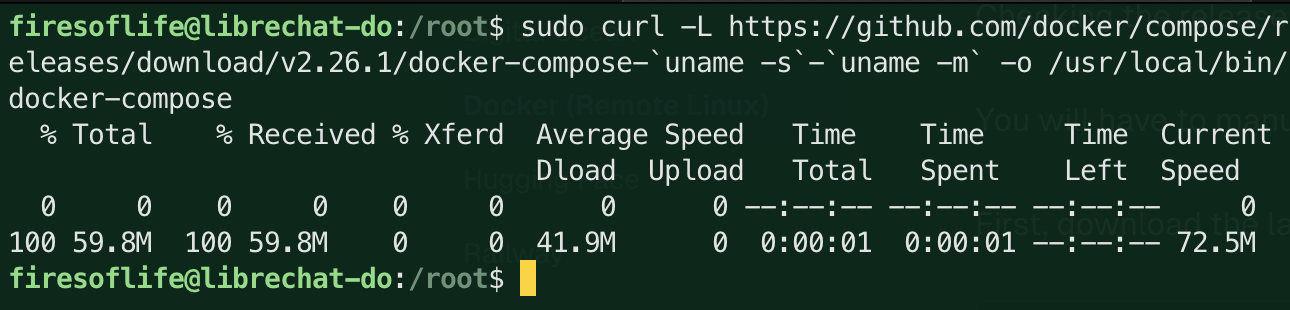
-
Apply executable permissions to the binary:
Terminal window sudo chmod +x /usr/local/bin/docker-compose -
Verify that Docker Compose is installed:
Terminal window docker-compose --versionYou should see output indicating the version of Docker Compose that you installed:
Step 5 - More Dependencies: Git & NPM
Section titled “Step 5 - More Dependencies: Git & NPM”If you’ve browsed through the LibreChat documenations, you may have noticed that it is a very active project. This means that there are frequent updates and changes. To ensure that you have the latest version of the project, you will need to install Git and NPM which will make updating the app easier.
-
Install git, nodejs and npm:
Terminal window sudo apt install git nodejs npmThis will install the latest versions of Git, Node.js, and NPM on your server so be patient as it may take a few moments. Note that the packages are pretty darn old. You can check the versions by running:
Terminal window git --versionnode --versionnpm --version
Step 6: Update Git, Node.js, and NPM (Optional)
Section titled “Step 6: Update Git, Node.js, and NPM (Optional)”Git
-
Add the Git PPA:
Terminal window sudo add-apt-repository ppa:git-core/ppaThis will output a description that tells us we are on track and where we want to be: “The most current stable version of Git for Ubuntu”
-
Make sure to update the package list:
sudo apt update- Install the latest stable version of Git:
sudo apt install gitgit --versionNode.js and NPM
- Add the NodeSource repository:
curl -fsSL https://deb.nodesource.com/setup_20.x | sudo -E bash --
Install Node.js and NPM:
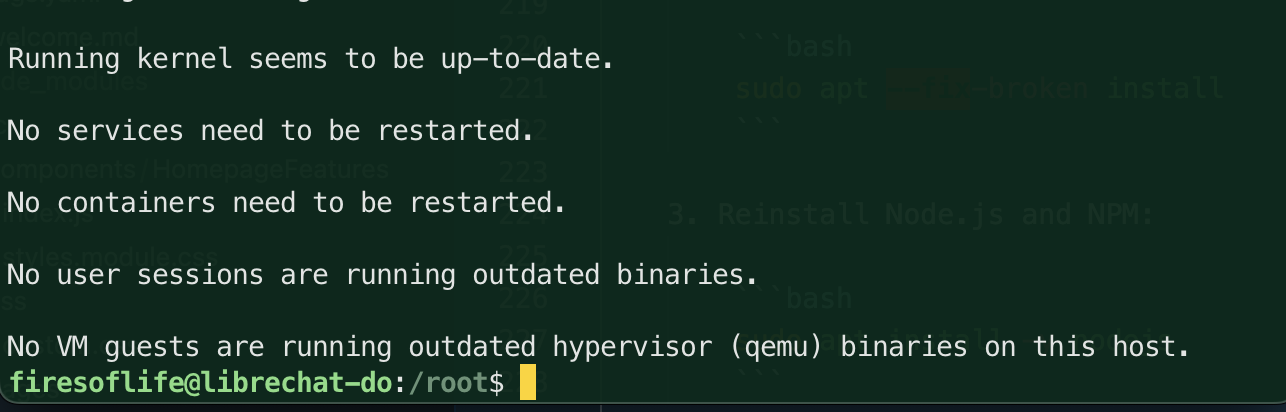
Terminal window sudo apt install -y nodejsIf your installation was successful you should see the following output. If not, ensure you’ve removed the older conflicting package and fixed the broken dependencies.
-
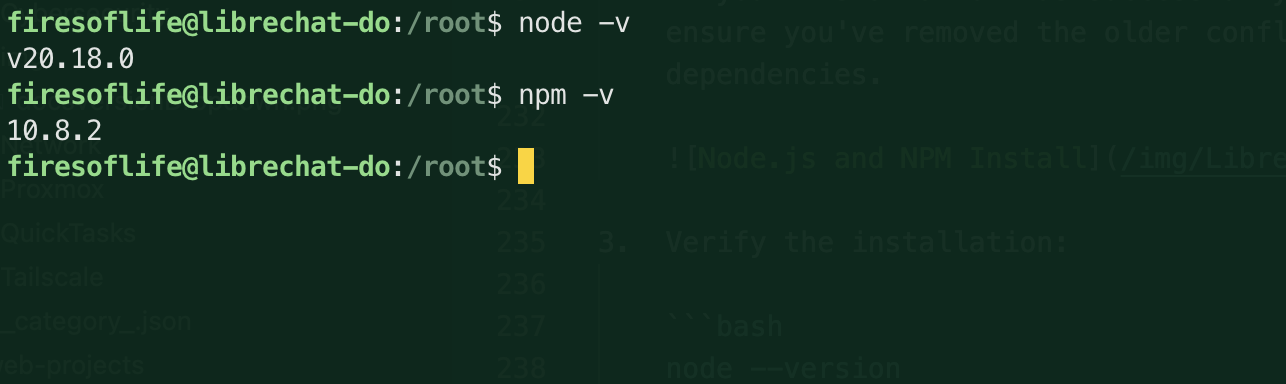
Verify the installation:
Terminal window node --versionnpm --versionYou should see output indicating the versions of Node.js and NPM that you installed. Yours should be at least as recent as the versions shown below:
The Ubuntu Droplet is now prepped and ready to install the app. Here is a recap of the steps we’ve taken:
- Created a DigitalOcean Droplet running Ubuntu 22.04
- Updated the package list and installed required dependencies
- Added the Docker repository to the source list
- Installed Docker and Docker Compose
- Installed Git, Node.js, and NPM
- Updated Git, Node.js, and NPM (optional)
Jump over to the next section to deploy the LibreChat app using Docker.